HPP Smart Wallet
HPP Smart Wallet is a web wallet for HPP, a blockchain network. It holds USDC.e — a US-dollar stablecoin (Bridged USDC) on HPP — and lets you send it, pay for online services with it, and give an AI agent a budget to spend from it.
There is nothing to install and no seed phrase: you sign in with your email. You do not need to hold ETH in this wallet — your first few operations are covered by HPP, and after that the network fee is taken in USDC.e.
HPP Smart Wallet on Mainnet is newly launched. Covered (free) operations are limited and may change, and there is no uptime guarantee yet. Use small amounts. Questions: HPP Telegram.
- Only sign in at aa.hpp.io (or aa-sepolia.hpp.io for testing). Bookmark it.
- Nobody from HPP will ever ask for your email code, your private key, or your recovery details.
- Sends cannot be undone — not by you, not by HPP, not by anyone.
Sign in
Open the wallet and choose Continue with email or passkey, then enter the code sent to your email.
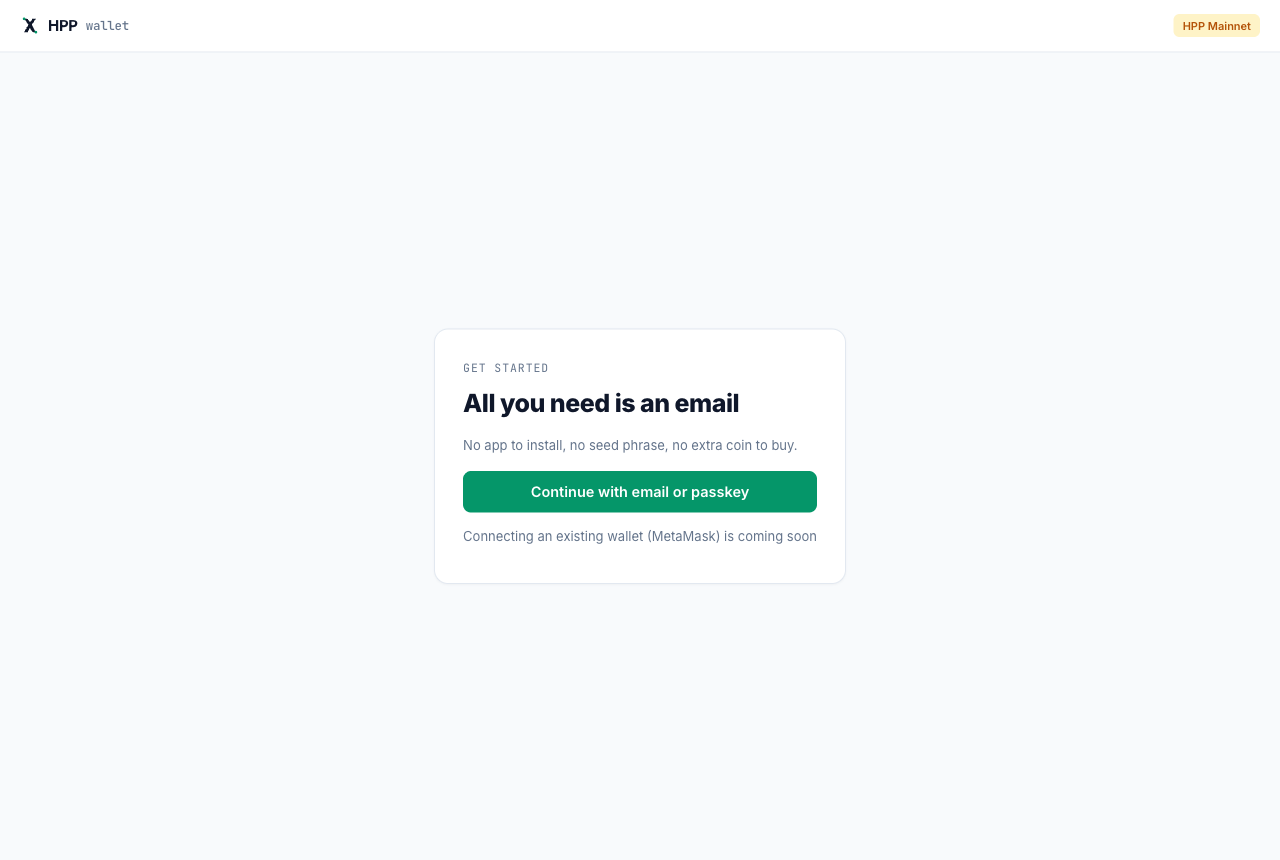
The first time, the wallet sets up your account. It takes a few seconds and HPP pays the network fee for it. Your address does not change — technically, your email login's address becomes a smart account (EIP-7702), which is what makes the free operations and agent budgets below possible.
Sign-in and keys are handled by Privy, our sign-in provider; HPP does not store your key. Signing in with the same email on a new device gives you the same wallet. If you lose access to your email, you lose access to the wallet — turn on two-factor authentication for your email account. Settings shows how to export your key from Privy if you want to move to another wallet, and lets you add a passkey.
Your home screen
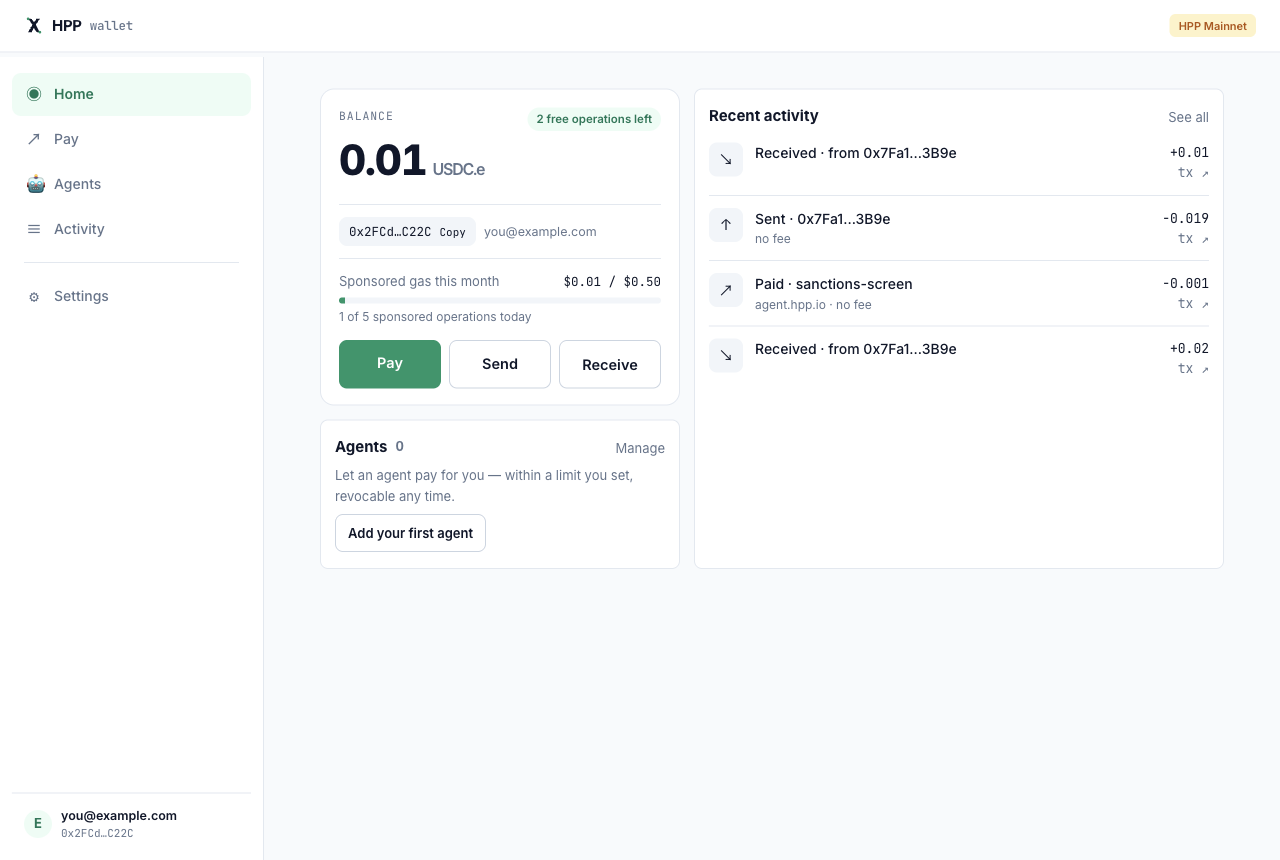
| Where | What it is |
|---|---|
| Balance | Your USDC.e |
| N free operations left | How many more operations HPP will pay the fee for. After that, fees are taken in USDC.e |
| Sponsored gas this month · sponsored operations today | The monthly amount and the daily number of operations HPP covers for you. When either runs out, fees are taken in USDC.e until the next day or month |
| Pay · Send · Receive | The main actions, described below. Receive shows your address to copy |
| Agents | Agents you have given a budget to |
| Recent activity | Sends, payments, agent payments, and USDC.e you received |
An operation is anything that changes your account on the network: a send, setting up an agent, or revoking one. Paying an x402 service is not an operation — it is only a signature, and has no fee.
The menu on the left has Home, Pay, Agents, Activity, and Settings.
Receive USDC.e
Choose Receive and copy your address. Share it with whoever is sending you USDC.e on HPP.
Only USDC.e on the HPP network arrives in this wallet. Tokens sent on another network (Ethereum, Base, Arbitrum, …) to this address cannot be recovered.
On Sepolia, the testnet wallet uses test USDC.e with no real value — ask for some in HPP Telegram.
Send USDC.e
- Choose Send, paste the recipient's HPP address, and enter an amount. Max sends everything except the fee.
- Review shows the recipient, the network, the fee, and your balance after — before anything happens:
- while you have free operations, the fee is none;
- otherwise the fee is a small amount of USDC.e. The wallet shows the most it can be; you are charged the actual amount, which is usually less.
- Send, and approve the signature prompt. The transfer is done in a few seconds; View on explorer opens the receipt.
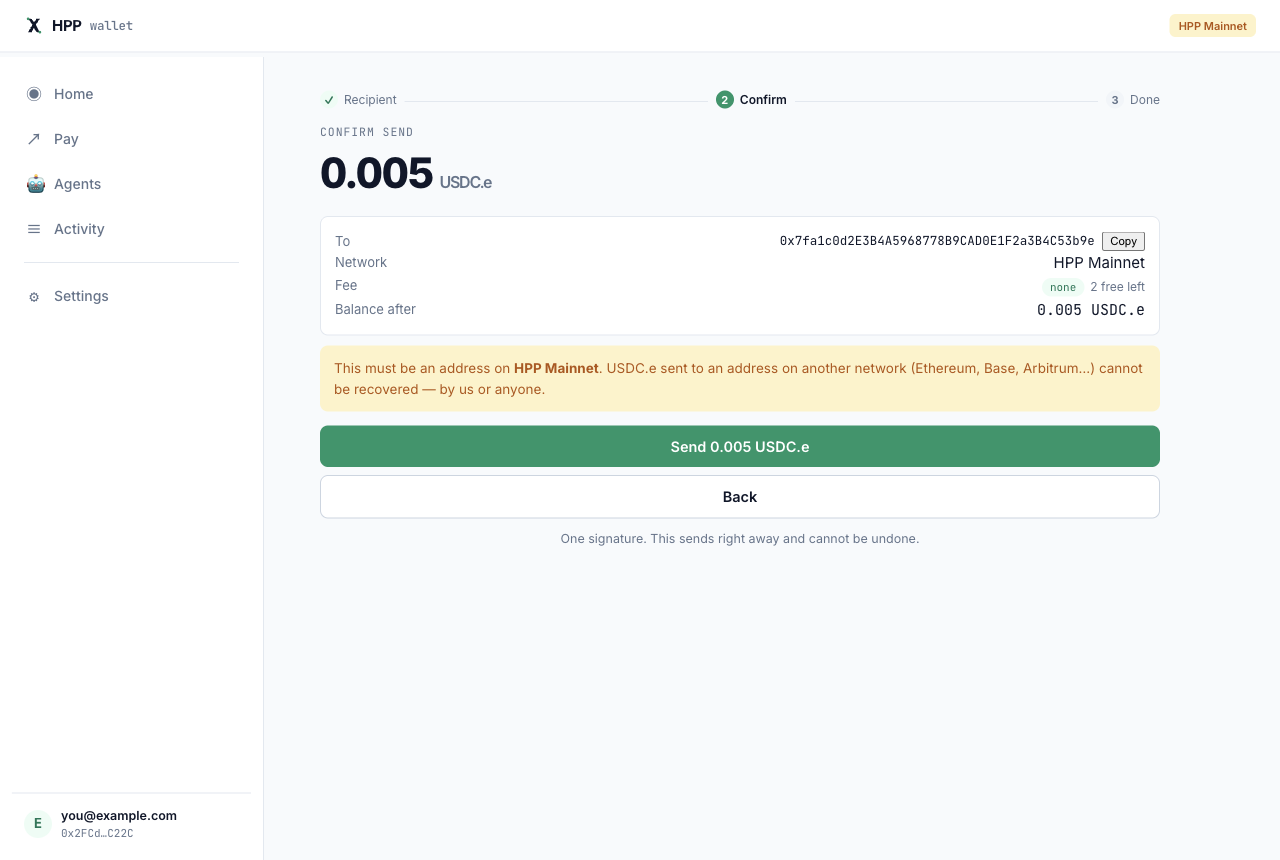
Double-check the address — a send cannot be reversed. If the address is a contract rather than a personal wallet, the wallet asks you to confirm it can receive USDC.e.
Pay an x402 service
x402 services are online APIs that charge a small amount of USDC.e per use. To pay one by hand:
- Choose Pay and paste the service's x402 endpoint (an
https://address the service gives you). Open Request body only if the service asks for JSON input. - Check price. The wallet shows the service, who gets paid, and the price.
- Send, and approve the signature prompt. There is no fee — a payment is only your signature. The service's answer appears below, with a link to the receipt.
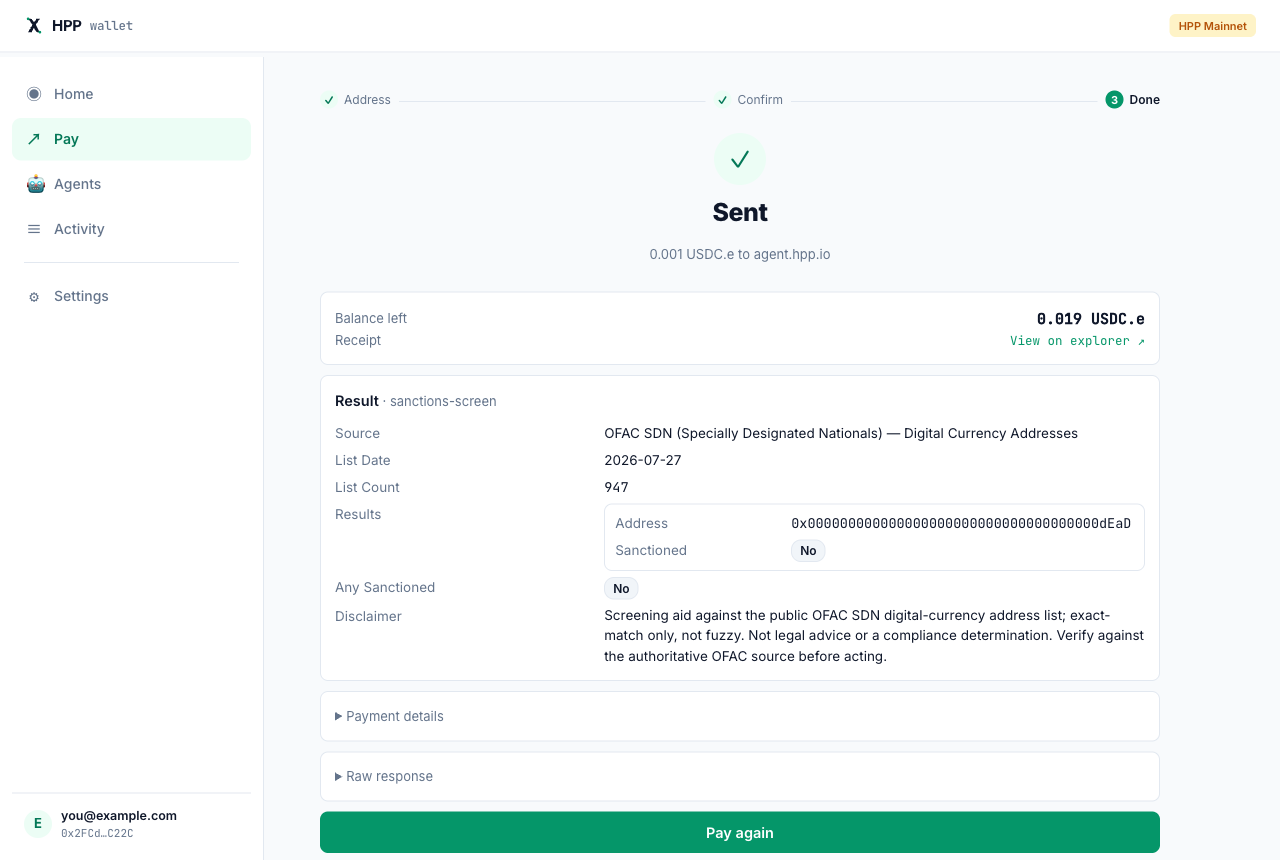
To find services, browse the x402 Explorer — each service page shows its endpoint and price.
Give an AI agent a budget
You can let an AI agent (such as Claude) pay x402 services from your wallet, up to a limit you set. The agent never gets your key and never holds your money.
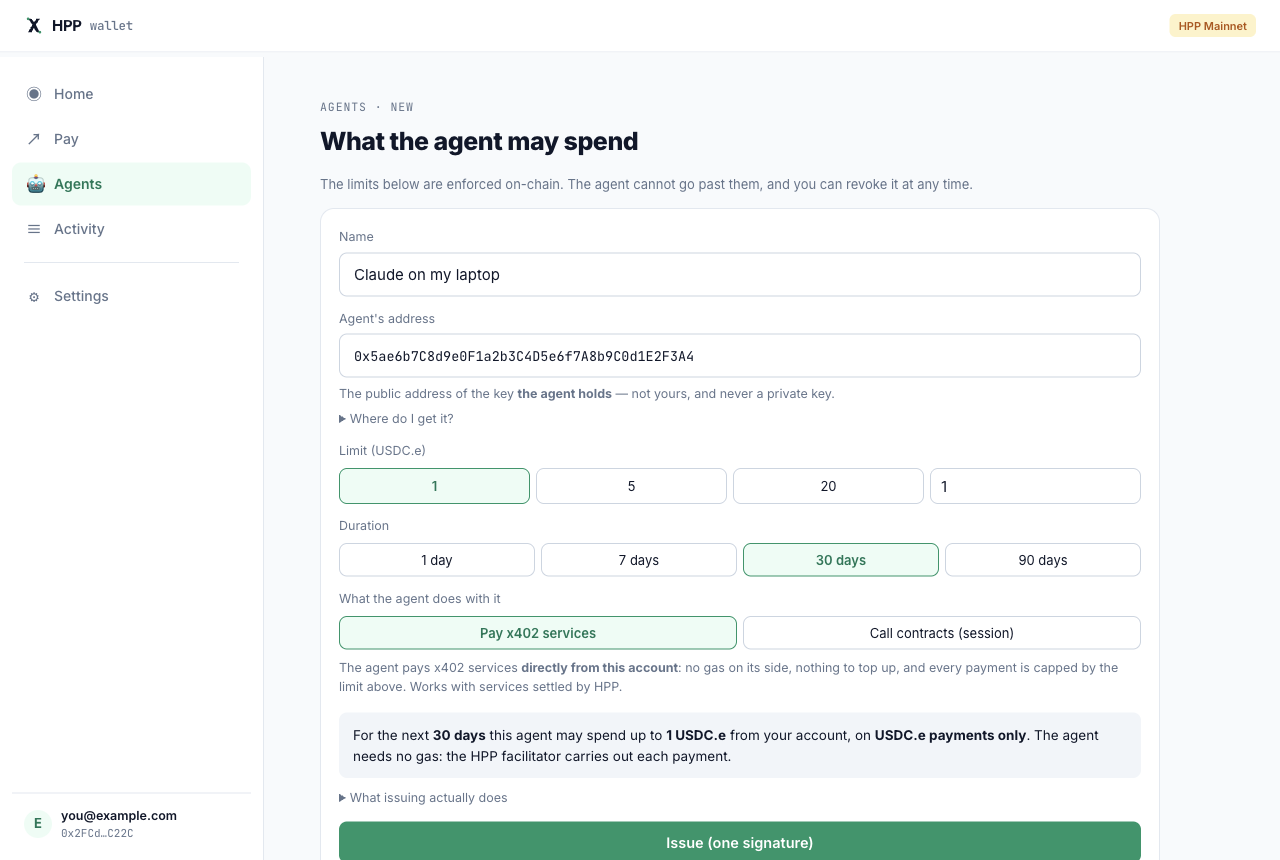
- Choose Agents → Add your first agent (or + Add agent).
- Give it a Name and paste the agent's address — the public address of the key the agent holds (the agent's tool shows it). Never paste a private key.
- Pick a Limit (USDC.e) — the most it may spend in total — and a Duration.
- Keep Pay x402 services selected and choose Issue (one signature). The first time you add an agent, the wallet also sets up your account for agents — that counts as one operation.
- Copy the HPP_PAYMENT_DELEGATION value the wallet shows into the agent's configuration, and keep a copy somewhere safe — you need it to revoke the agent from another device.
Setting up the agent's side (Claude Desktop, Cursor, …) needs some technical steps — Pay from an agent walks through them.
The limits are enforced by the network, for every payment: the total amount, the expiry, and the exact amount and recipient of each payment. The agent cannot go past them.
Revoke an agent
On Agents, choose Revoke. It is one operation and usually takes effect within seconds; HPP normally covers its fee. Then remove the old value from the agent's configuration.
To revoke an agent you added on another device, open Agents → Revoke a payment delegation that is not in this list and paste its HPP_PAYMENT_DELEGATION value.
Add agent also offers Call contracts (session) — for developers whose agent sends its own transactions to specific contracts. See Agent permissions.
Activity
Activity lists everything that moved through your account — sends, x402 payments, payments your agents made, USDC.e you received, and account setup. Click an entry for details and a link to the block explorer.
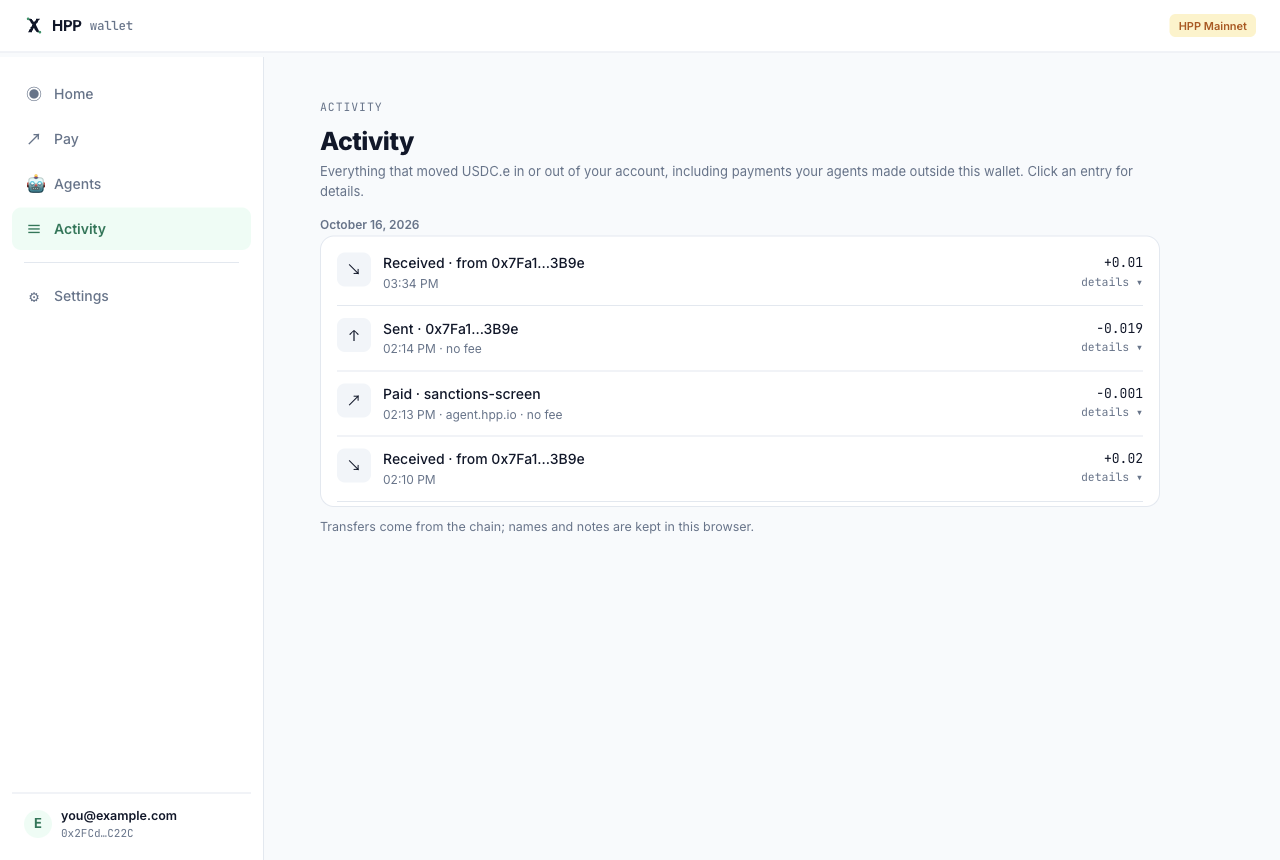
Names and notes you see there are kept in your browser; the transfers themselves come from the network.
Need help?
Ask in HPP Telegram. Never share your email code or private key with anyone — including people who say they are from HPP.