Pay from an agent with your wallet
This setup uses a terminal and edits a configuration file of your AI app. You need Node.js 20+ and an MCP host such as Claude Desktop, Claude Code, or Cursor.
Pay from an AI agent gives an agent its own small wallet that you fund. This page shows the other way: the agent pays from your HPP Smart Wallet, under a limit you set there. The agent's key holds nothing, and one click in the wallet stops it.
| Agent's own wallet (x402 guide) | Pay from your wallet (this page) | |
|---|---|---|
| Where the money is | In the agent's key — you fund it | In your smart wallet |
| What limits the agent | What you funded | A limit, an expiry, and per-payment checks — on-chain |
| Stopping it | Move the funds out | Revoke in the wallet, effective immediately |
| Works with | Any x402 service | Services settled by the HPP facilitator (they list erc7710) |
Requirements
- An HPP Smart Wallet account with some USDC.e
- The
hpp-x402tool — steps 1 and 2 of Pay from an AI agent (install, thenhpp-x402 setup --install <host>)
1. Get the agent's address
hpp-x402 wallet address
This is the agent's own key, kept in your OS keychain. It does not need any USDC.e or ETH for this mode.
2. Issue a limit in the wallet
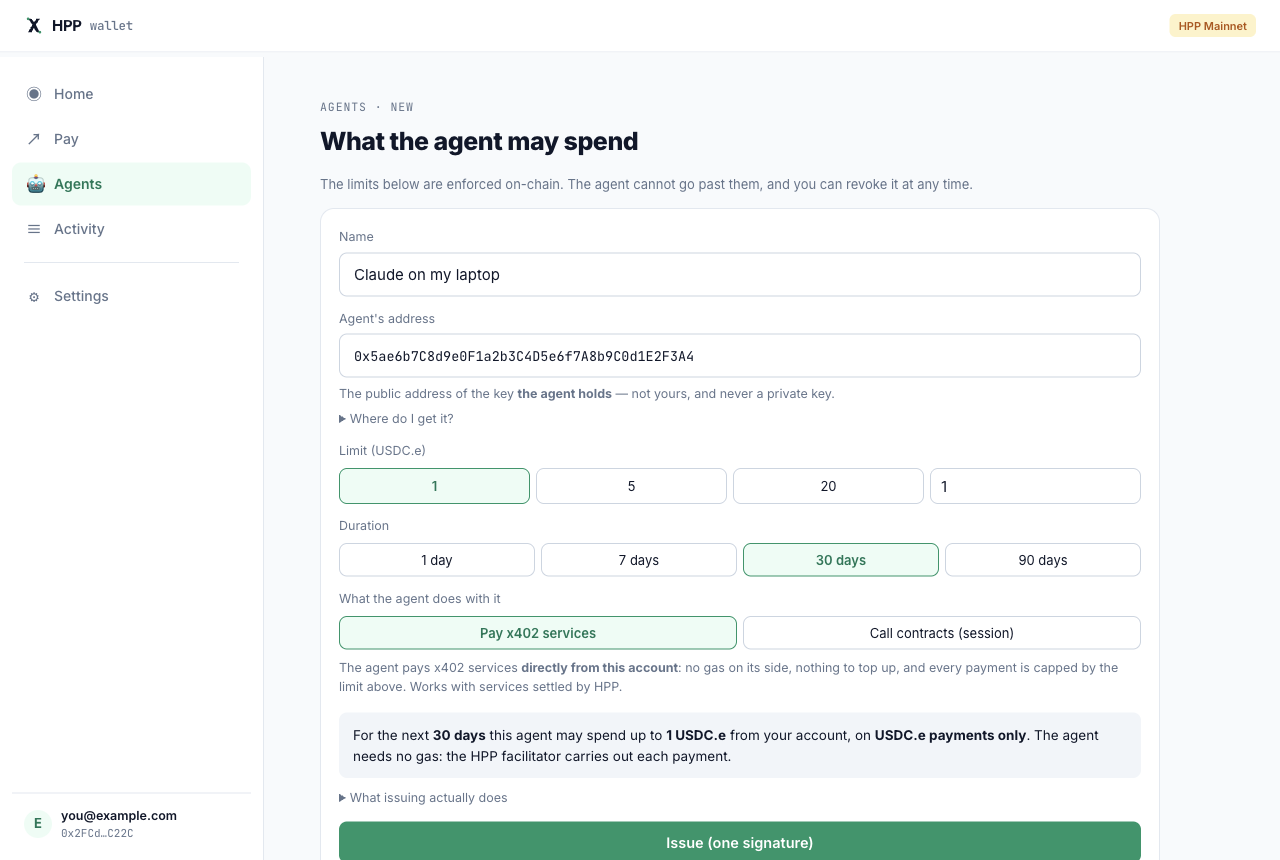
In the wallet, open Agents → Add agent:
- Name it (e.g. Claude on my laptop) and paste the agent's address from step 1.
- Set the Limit (USDC.e) — the most it may spend in total — and the Duration.
- Keep Pay x402 services selected and choose Issue (one signature).
- Copy the HPP_PAYMENT_DELEGATION value.
3. Add it to your agent host
hpp-x402 setup --install <host> (step 2 of the x402 guide) already added an hpp-x402
entry to your host's MCP configuration and printed the file's path — for Claude Desktop that is
~/Library/Application Support/Claude/claude_desktop_config.json on macOS and
%APPDATA%\Claude\claude_desktop_config.json on Windows. Add two values to that entry's env —
HPP_NETWORK picks the network your wallet is on, HPP_PAYMENT_DELEGATION is the value you copied:
{
  "mcpServers": {
    "hpp-x402": {
      "command": "npx",
      "args": ["-y", "@hpp-io/x402-mcp-bridge"],
      "env": {
        "HPP_NETWORK": "eip155:190415",
        "HPP_PAYMENT_DELEGATION": "0x…"
      }
    }
  }
}
Use eip155:181228 for the Sepolia wallet. Restart the host. The bridge checks the value when it starts.
Keep a copy of the value somewhere safe: you need it to revoke this agent from another device.
4. Let the agent pay
Ask your agent for something that costs money:
“Screen 0x1234…abcd against the OFAC sanctions list.”
The agent finds the service, sees the price, and pays — from your wallet. The payment shows up in the wallet's Activity as an agent payment, and the agent's own key still holds nothing.
What the limits guarantee
Every payment is checked by the chain, not by HPP's servers:
- the total the agent has spent stays within your limit, and the permission expires when you said;
- each payment moves exactly the quoted amount to exactly the seller's address;
- only the HPP facilitator can redeem it, and each signed payment is valid for a short time.
So the limits hold even if the agent misbehaves. The value you paste is not enough to spend on its own — it also needs the agent's key, which stays in your OS keychain. If that key is ever exposed, revoke the permission. Full details: security model.
Revoke
In the wallet, open Agents and choose Revoke on the agent. It is one operation, usually effective
within seconds, and HPP normally covers its fee. Any payment the agent tries afterwards fails. Then remove
HPP_PAYMENT_DELEGATION from the host's configuration.
Troubleshooting
| Symptom | What to check |
|---|---|
| The bridge does not start after adding the value | The value was cut off when copying, or it was issued on the other network — check HPP_NETWORK |
| A service is not paid from the wallet | The service does not accept erc7710 (it is not settled by the HPP facilitator). The agent falls back to its own key, which holds nothing, so the call is not paid |
| Payments stopped | The limit is used up or the permission expired — issue a new one in Agents |